Frequently Asked Questions – Macro Recorder for Windows 11 & 10
Find answers to common questions about recording and playing back mouse clicks and keystrokes, configuring system-wide hotkeys, saving reusable macro scripts, the 10-use free trial, and licensing on Windows 11 and Windows 10. Select any question below to view the answer.
General, Feature & Licensing Questions
What can I record with this Macro Recorder?
You can record all mouse and keyboard actions, including mouse movement, hovering, drag-and-drop, clicking (left, middle, right, and double-click), combined keystrokes like Ctrl+Click or Shift+Click, and standard keyboard typing.
Which Windows versions are supported by the software?
Macro Recorder supports 32-bit and 64-bit editions of Windows 11 and Windows 10, including dual-monitor and high-DPI display setups.
How do I start and stop recording or playback?
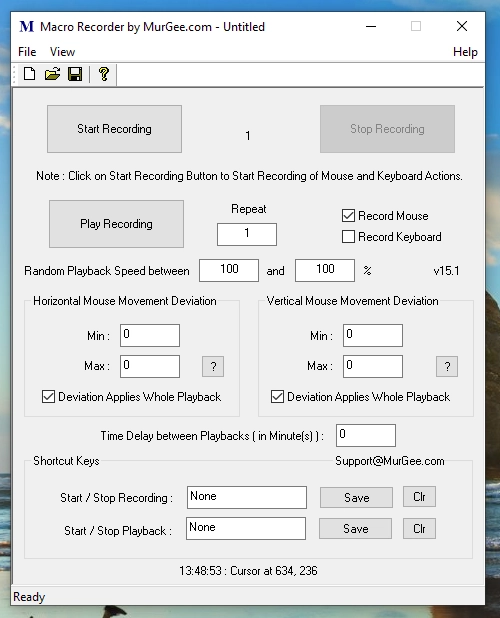
You can control recording and playback by clicking the Start Recording or Play Recording buttons on the interface, or by pressing your own configurable system-wide keyboard shortcuts. A separate configurable shortcut lets you pause and resume playback anytime.
Do I need coding or scripting knowledge to automate tasks?
No coding is required. Macro Recorder captures your real mouse and keyboard input visually and saves it to a reusable macro script file that you can inspect, loop, and play back at any speed.
Can I save recorded macros and reuse them later?
Yes. Recorded mouse movements, clicks, and keystrokes can be saved to a macro script file on your computer and loaded back into Macro Recorder whenever you want to run the automation again.
Can I loop macro playback or randomize the playback speed?
Yes. You can specify any numerical repeat count to loop recorded actions multiple times, adjust playback speed, and enable variable or randomized delays so each playback cycle runs with natural timing.
What additional tools are built into Macro Recorder?
In addition to recording and playing back macros, the software includes a Recorded Data Viewer with pixel color and UI control inspection, a configurable Mouse Cursor Highlighter, a real-time Clipboard Text Monitor, and a full-screen or rectangular PNG screen capture tool. You can preview these tools in the Macro Recorder screenshots gallery.
Does Macro Recorder work with multiple monitors and non-English keyboards?
Yes. Macro Recorder supports dual-monitor and multi-monitor Windows workstations with high screen resolutions, and it accurately records keyboard input across both English and international (non-English) keyboard layouts.
Do I need administrator rights to run Macro Recorder, and what happens if I lock my PC?
Administrator privileges are required only during installation. Once installed, you can run Macro Recorder under a standard Windows user account. You can also enable Auto Stop when Locked in Settings to automatically stop macro playback whenever your Windows PC is locked.
Is Macro Recorder digitally signed, safe, and lightweight?
Yes. The 412 KB installer is digitally signed and contains no adware or malware. While running, Macro Recorder uses minimal CPU and less than 10 MB of RAM. You are also welcome to scan the installer with any antivirus tool before installing.
How much does Macro Recorder cost after the free trial?
The free trial allows you to use the software up to 10 times with no functional limitations. Once the 10-use trial ends, you can unlock full access for 6 months of use with a one-time payment of $8.76.
How do I uninstall this software?
You can uninstall the Macro Recorder by MurGee.com application by following these steps:
Open your Windows Settings menu.
Navigate to Apps > Installed Apps.
Locate Macro Recorder by MurGee.com in the list.
Click the three dots (or right-click) and select Uninstall.
How can I contact support or suggest a new feature?
You can email our support team at Support@MurGee.com with any questions, feedback, or feature requests. All emails are answered within 24 hours.
Download Macro Recorder Free Trial for Windows 11 & 10
Ready to automate repetitive clicks and keystrokes? Try Macro Recorder free for up to 10 uses with full functionality, or explore more screenshots and watch the video tutorial.