Macro Recorder for Windows to Record and Playback Mouse and Keyboard Actions
Record and playback mouse and keyboard actions with Macro Recorder on Windows 11, Windows 10, etc. All mouse actions such as moving, hovering, dragging, and clicking with any mouse button can be recorded with this Macro Recorder. Keyboard actions can also be recorded, and you can even record combined mouse and keyboard actions such as Ctrl + Click, Shift + Click, and more with this simple, straightforward, and easy-to-use Macro Recorder. Download and try this digitally signed Macro Recorder for free on your Windows 11, Windows 10, Windows 8.1, or Windows Server 2022 computer.
Macro Recorder for Windows
Record and Playback Mouse / Keyboard Actions
With Macro Recorder, you can record and playback mouse and keyboard actions on Windows 11, Windows 10, Windows 8.1, or the latest Windows Server versions.
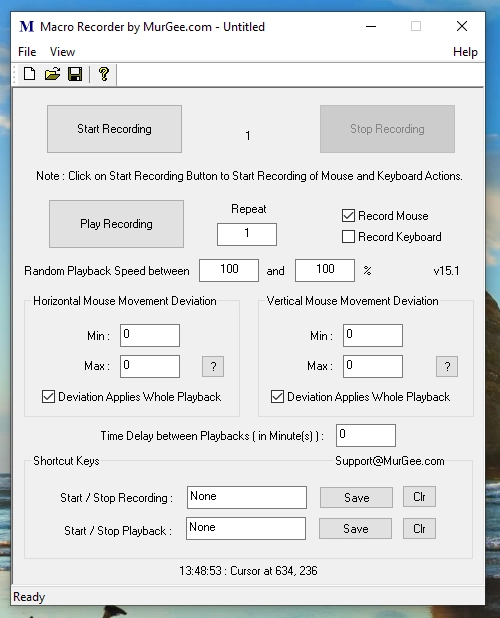
Mouse and keyboard recording can be started by clicking the Start Recording button or by using a configurable keyboard shortcut.
Once you have recorded mouse or keyboard actions, you can play them back with a keyboard shortcut or by clicking the Play Recording button.
When playing back the recorded mouse and keyboard actions, you can repeat the playback, adjust the playback speed, and configure other available playback parameters.
Free Trial of Macro Recorder by MurGee.com for Windows
Automate your repetitive tasks with automated mouse and keyboard actions instantly. You can download free trial of Macro Recorder by MurGee.com from button below to evaluate this digitally signed automation software on your PC. It is fully compatible with Windows 11, Windows 10, etc.
No Restrictions: The free trial version has zero functional limitations, allowing you to test all features.
Affordable Activation: After the trial period expires, unlock the full version for just $8.76 to continue using the software for up to 6 months.
Administrator privileges are required for installation only. Running Macro Recorder does not require admin access.
Macro Recorder for Windows to Record and Playback Mouse and Keyboard
Features of Macro Recorder
Below are a few features of the Macro Recorder software that make it the best macro recorder for Windows. This Macro Recorder is in active development, and suggestions for additional features are welcome.
The Macro Recorder by MurGee.com can record all types of mouse actions such as left-click, double-click, middle-click, Ctrl + click, Shift + click, drag and drop, etc.
All keyboard activity is recorded in perfect order by this Macro Recorder. Whether you are using an English or non-English keyboard, this Macro Recorder can record all types of keyboard activity.
The recorded mouse and keyboard activity can be stored in a macro script file, which can later be loaded into the Macro Recorder for playback.
Configurable system-wide keyboard shortcuts can be used to control the recording and playback of mouse and keyboard actions.
This Macro Recorder is very simple to learn and use. The screenshot above displays the main screen of the Macro Recorder, featuring a few buttons and configurable keyboard shortcuts.
You can download and try out this Macro Recorder for free. It does not contain any adware or malware, but you are encouraged to scan it with online or offline antivirus applications before installing it on your Windows desktop or laptop computer.
You can use this Macro Recorder on 32-bit or 64-bit versions of Microsoft Windows. The Macro Recorder works on Windows 11, Windows 10, Windows 8.1, etc., and uses minimal system resources such as CPU, memory (less than 10 MB), and hard disk space.
You can playback recorded mouse and keyboard actions multiple times by specifying a repeat count with any numerical value.
The playback speed for recorded mouse and keyboard actions can be made variable so that each and every playback has unique timing.
You can view the macro recording data, view the pixel color of a mouse action, and even automatically view information about the control beneath the mouse action.
You can easily view mouse actions and keystrokes performed manually as well as those executed by the Macro Recorder.
The Mouse Cursor Highlighter available in the Macro Recorder provides a configurable circle around the mouse cursor so that you always know its location. The cursor highlighter can be displayed in a random or configured color, and it even allows you to use different colors for manual versus automated mouse actions.
With the built-in Clipboard Text Monitor, you can view clipboard text in a resizable and relocatable pop-up window.
You can even capture a screenshot of the whole screen or a partial rectangular screen area and save it as an image file on your computer.
There are configurable settings available in the Macro Recorder that assist you in controlling it easily.
The Macro Recorder also works on dual or multiple-monitor Windows computers with high screen resolutions.
You can also enable Auto Stop when Locked from Settings of the Software to automatically Stop Recording Playback whenever Computer is Locked.
Video Tutorial of Macro Recorder
Watch a short video tutorial that demonstrates how to use the Macro Recorder. The tutorial was recorded on a Windows 11 computer, but the procedure to record and playback macros is exactly the same for other supported versions of Microsoft Windows, such as Windows 8.1 and Windows 10. You can alternatively view screenshots of the Macro Recorder to easily understand all the features offered by this software for Windows 11, Windows 10, and more.
Frequently Asked Questions about Macro Recorder Software by MurGee.com
Here you can find quick questions and answers to easily understand the features of Macro Recorder by MurGee.com for Windows 10 and Windows 11. Click any question below to reveal its answer.
What can I record with this Macro Recorder?
You can record all mouse and keyboard actions, including mouse movement, hovering, dragging, clicking (left, middle, right), combined keystrokes like Ctrl+Click or Shift+Click, and standard keyboard typing.
Which Windows versions are supported by the software?
The Macro Recorder supports 32-bit and 64-bit versions of Windows 11, Windows 10, Windows 8.1, and Windows Server 2022.
How do I start and stop recording or playback?
You can control recording and playback by clicking the 'Start Recording' or 'Play Recording' buttons on the interface, or by using your own configurable system-wide keyboard shortcuts.
How much does the Macro Recorder cost after the free trial?
The free trial has no functional limitations. Once the trial usage period ends, you can unlock the software for 6 months of use by paying $8.76.
How do I uninstall this software?
You can uninstall Macro Recorder by MurGee.com application by following these steps:
Open your computer's Settings menu.
Navigate to Apps > Installed Apps.
Locate Macro Recorder by MurGee.com in the list.
Click the three dots (or right-click) and select Uninstall.